Quick facts: building a budget in OptiAI
- What it is: OptiAI is an AI-powered family and life organizer; its budgeting area has Money In, Money Limits and Money Out, next to the family calendar, lists and chores.
- Statements: upload a bank or card statement, or photograph a receipt; the transactions are read out and you review each one before anything saves.
- Limits: envelope-style monthly limits per category, with rollover you choose per category.
- Bank connection: optional and read-only; in the US and Canada, 1 bank on Full Access and 2 on the One plan. Statement import works without it.
- Platforms and languages: web (installable), iOS and Android, in 11 app languages; multiple currencies supported.
- Price: free "Full Access" tier with every module and no trial or card; one paid plan at $4.99/month or $49.99/year.
- Publisher and not advice: published by Aspire Digital LLC; OptiAI provides organisation tools and information, not financial, tax or legal advice.
Last reviewed 2026-10-26.
Why start from a statement instead of a blank budget
A budget built from intentions usually describes a household that does not exist. A bank statement shows the one that does: the subscription nobody remembers, the grocery run that happens three times a week, the annual bill that lands in March.
Starting there removes the guesswork and the argument. Two adults looking at the same statement are discussing facts, not each other's habits.
The seven steps
- Pick one statement. Choose the most recent full month from the account the family spends from most. If two adults spend from different accounts, do one each.
- Read it line by line. Skim for anything that surprises you before you total anything. Surprises are the point of the exercise.
- Group into 8 to 12 categories. Housing, groceries, transport, bills, kids, eating out, health, savings, and an "everything else" bucket. Fewer categories are easier to keep.
- Separate fixed from flexible. Rent and insurance rarely change. Groceries and eating out are where a limit actually does work.
- Total each category. Add the month up. This is your baseline: what the household really spent, not a target.
- Set a limit per category. Start near the baseline, and trim only one or two flexible categories. Big cuts everywhere fail by week two.
- Review after a month. Compare limit to actual, move the numbers, and decide per category whether leftovers roll over.
You can do all seven in a spreadsheet. The slow part is steps 2 and 3, because every line has to be read and sorted by hand. That is the part software can take over.
How it works in OptiAI
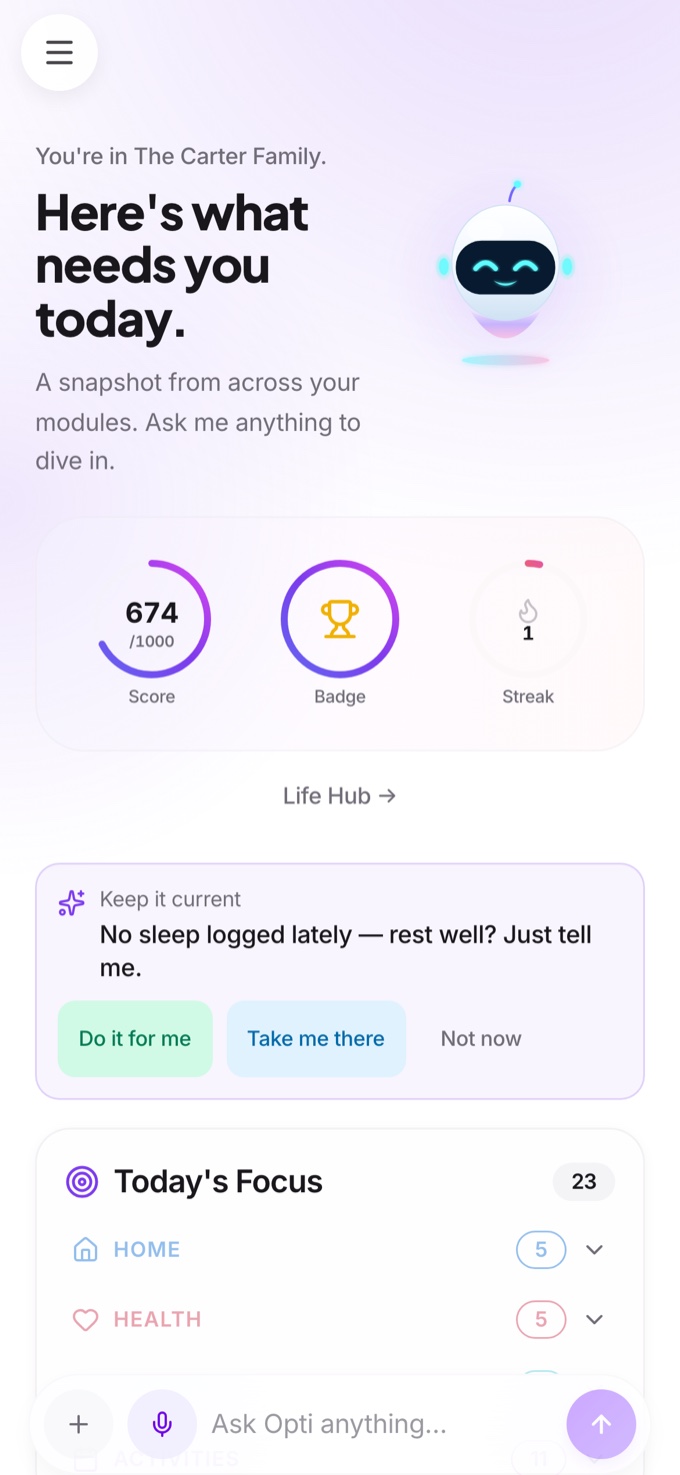
- Upload or photograph. Add a statement or a receipt photo. The transactions are read out and matched to spending categories.
- Review before it saves. Each transaction waits in a review step where you can change its category. Nothing is added to your budget until you confirm it.
- Set limits. Use a suggested starting budget based on household size, region and your own spending, or a quick template, and edit every number.
- Ask in plain language. In the app, WhatsApp or Telegram, try "how much did we spend on groceries this month?". Opti answers from your own transactions.
- Share what you choose. Share Money In, Money Limits and Money Out with a partner separately.
More on each piece: the household budget app page, the budgeting overview, and the envelope budgeting guide.
By hand, in a spreadsheet, or in an app
| Approach | Strength | Trade-off | Reach for it when |
|---|---|---|---|
| Pen and paper | No setup, no accounts | Slow to total, easy to abandon | You want to see the method before committing to a tool |
| Spreadsheet | Fully flexible, you own the file | You sort every line yourself and build the formulas | You enjoy spreadsheets and budget alone |
| Budgeting app with statement reading (such as OptiAI) | Reads and sorts transactions, shared with the household | Needs a review pass; reading depends on how clear the file is | Two adults share the budget and you also want calendar, lists and chores in the same place |
Where OptiAI is not the right pick: if you want a dedicated investing or tax tool, or a single-person spreadsheet you fully control, a specialist tool will serve you better. OptiAI’s budgeting is built for households.
Keeping it going after month one
- Pick one fixed day a month, ten minutes, to compare limits with actuals.
- Change only the categories that were off by a lot, not all of them.
- Use rollover for irregular costs such as car maintenance, and a hard reset for everyday spending.
- If children are old enough, show them the groceries limit. Kids Money covers allowance and savings jars.
Our bias, stated plainly
We build OptiAI, so this guide describes it most fully. The seven steps work with any tool, and a spreadsheet is a perfectly good way to begin. This guide is general information and not financial advice; for decisions about your money, consult a qualified professional. If you want to try ours, the Full Access tier is free with every module included and no trial. Open OptiAI.